

ClaimGuard Support
Welcome to the ClaimGuard Support page. This page provides help with using the app, troubleshooting common issues, and contacting the developer.
About ClaimGuard
ClaimGuard is a home inventory management app designed to help you document and organize your personal property. By keeping a detailed inventory of your belongings—including photos, descriptions, and purchase information—you can more easily manage your assets and simplify insurance claims in the event of loss or damage.
All data you enter in ClaimGuard is stored in your personal Apple iCloud account using Apple CloudKit.
Concepts and Features
In ClaimGuard, there are three types of objects: homes, policies, and items. A home is a location where items are kept. It can be your residence, a vacation property, a business, a storage unit, or anything else you want. A policy is an insurance policy that covers the home and/or its contents. ClaimGuard lets you track a variety of different policies, including home owner’s, fire, flood, liability, and more. An item is an object you want to track. It could be a computer, a piece of jewelry, your favorite chair, a family member’s car, or anything else you want. Filling a home with items will make you prepared, should you need to file an insurance policy claim after a disaster, so track as many items as you can to get the most value from ClaimGuard.
Free Features
ClaimGuard’s core functionality is always free to use. This allows you to create:
- 1 home
- 1 policy
- 20 items
Homes
Each Home in ClaimGuard has a name that you choose, and can optionally include a photo and address. The information you provide about a home is never shared with the developer, AI, or anyone else. Home information stays private on your device and in your Apple iCloud account.
Policies
When you enter a policy in ClaimGuard, you’re asked to provide the type of policy, policy number, insurance company name, and policy expiration date. You can also add contact information for your insurance agent. The policy and contact information you enter in ClaimGuard is never shared with the developer, AI, or anyone else. Policy and contact information stays private on your device and in your Apple iCloud account.
Items
Tracking Items with ClaimGuard is how you get the most value from the app and ensure that you’re prepared for whatever life sends your way. When you enter an item in ClaimGuard, you can add as much or as little information as you like, including: location, category, condition, name, model name, model number, serial number, manufacturer, purchase date, purchased from, purchase price, proof of purchase, and an item photo.
Premium Features
Get the most from ClaimGuard with a subscription to ClaimGuard Premium Features – only $9.99 USD per year! ClaimGuard Premium Features gives you unlimited tracking makes tracking items a breeze with the power of AI. A subscription ClaimGuard Premium Features includes:
Unlimited Tracking – create as many homes, policies and items as you like. The more you track, the better prepared you’ll be.
AI Object Detection – Snap a photo of an item and ClaimGuard will use the power of OpenAI’s GPT models to detect what the item is and log it to your inventory – saving you time and taps.
AI Label Scanner – Does your item have a manufacturer’s product label on it, like an appliance or TV? Just take a photo of that label and ClaimGuard will use GPT models from OpenAI to analyze it and add it to your inventory.
AI Confirmation – With AI Confirmation turned on, you’re in control. When you use a feature like AI Object Detection or AI Label Scanner, the AI Confirmation will give you an opportunity to review and edit the information that was provided by the AI system before it gets saved to your inventory. You can turn off AI Confirmation to allow AI to directly create an item for you with the extra confirmation step. Whether you use AI Confirmation or not, you can always edit item information yourself.
Feature Comparrison
| ClaimGuard core functionality | ClaimGuard Premium Features | |
| Cost | Always free to use | $9.99 USD per year, cancel anytime |
| Maximum homes | 1 | Unlimited |
| Maximum policies | 1 | Unlimited |
| Maximum items | 20 | Unlimited |
| AI Features | – | AI Object Detection AI Label Scanner |
| Multi-Device Support | Sync homes, policies and items across all your devices with Apple iCloud | Sync homes, policies and items across all your devices with Apple iCloud |
| Inventory Management | Import an existing home inventory from a CSV file. Export your ClaimGuard home inventory to a CSV file. | Import an existing home inventory from a CSV file. Export your ClaimGuard home inventory to a CSV file. |
| Convenience Features | Create calendar reminders for policy renewals. Add insurance agents to your Contacts | Create calendar reminders for policy renewals. Add insurance agents to your Contacts |
Supported Devices
ClaimGuard is supported on iPhones and iPads with iOS/iPadOS 18 or later. ClaimGuard can be used on other Apple devices, like Mac and Vision Pro, but some features may be unavailable.
Onboarding
When you install ClaimGuard for the first time, the app greets you with some quick setup steps.
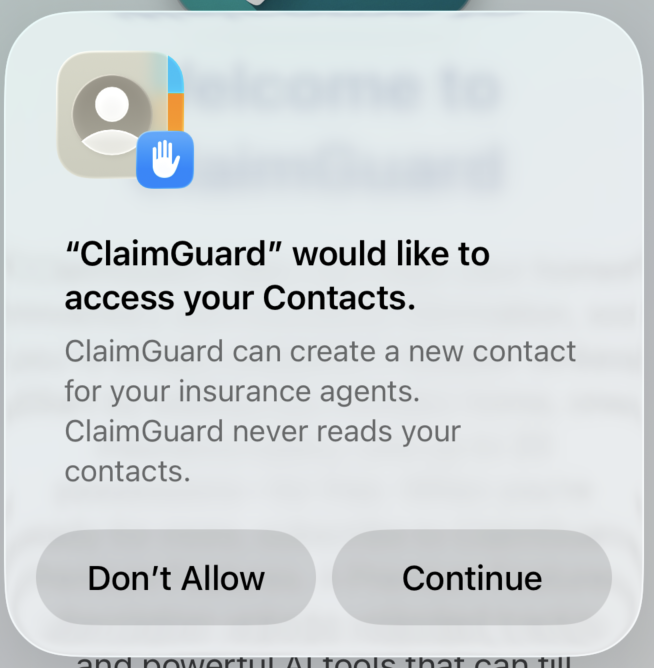
ClaimGuard may ask permission to access your contacts. ClaimGuard only uses this permission to add contact cards for your insurance agents. ClaimGuard will never view, analyze, store, copy or share any of your existing contacts or future contacts.
Add A Home
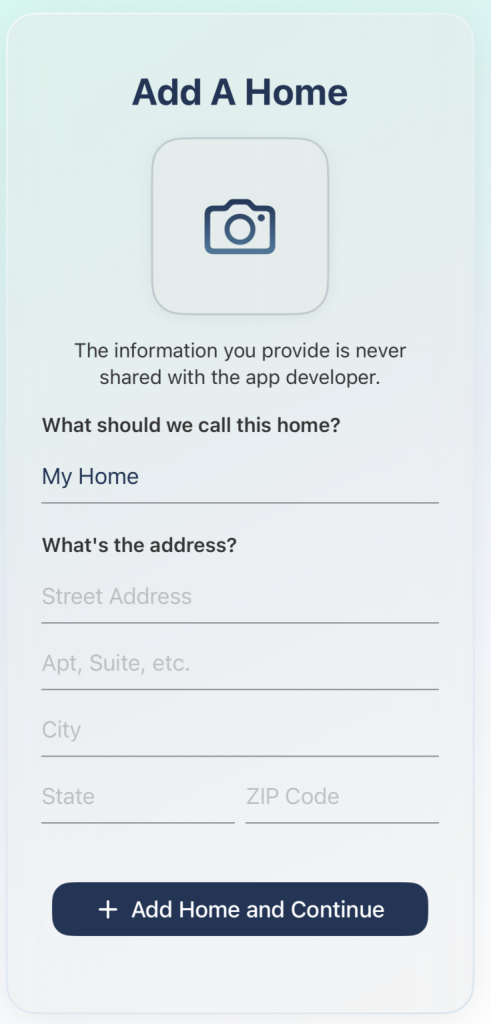
Enter as much or as little information about the home as you like. ClaimGuard never shares the information you provide with anyone – its just for your records.
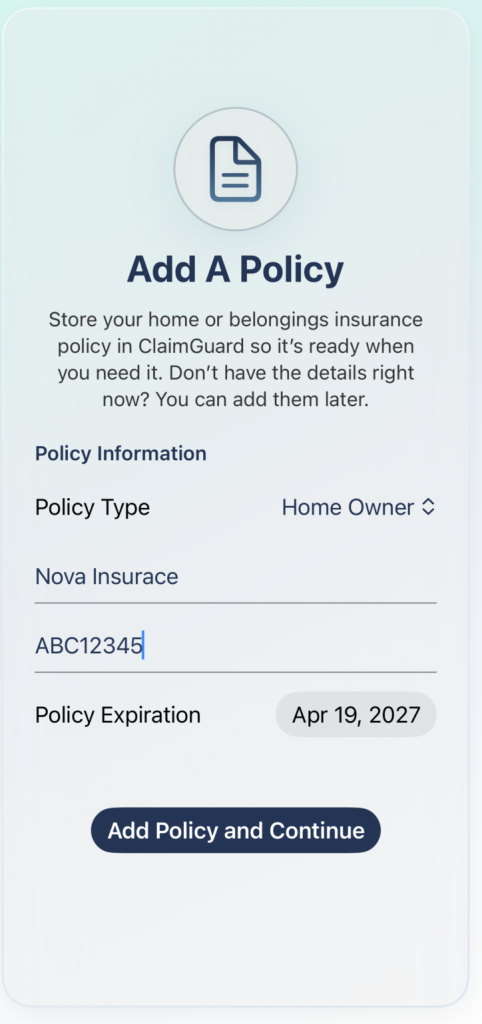
Track an insurance policy, or don’t. This is optional, but it can be a helpful when you’re recovering from the unexpected. The information you provide is never shared with the developer or anyone else.
Navigating ClaimGuard
Homes
Each home you create will appear as a card with buttons for Policies, Inventory, and Info.
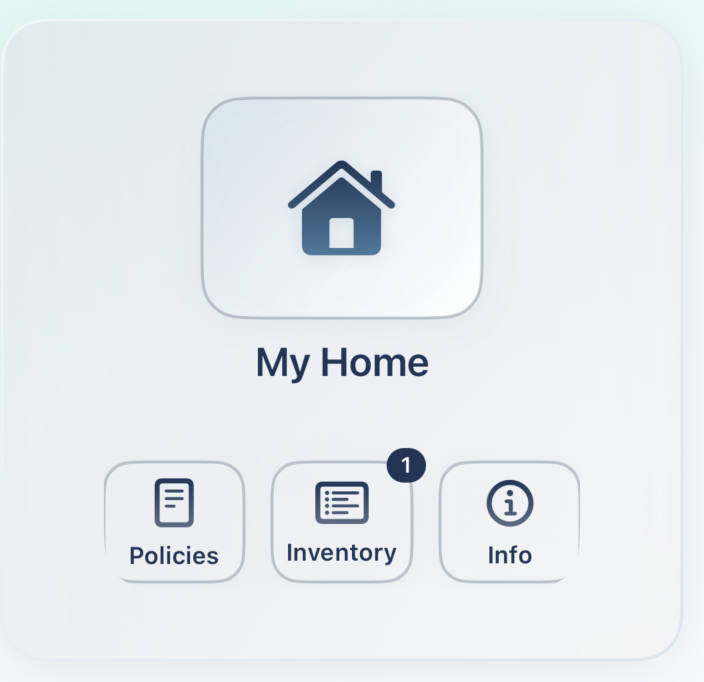
Policies – displays the insurance policies you’ve tracked for this home. After you track the first policy for this home, a blue badge will appear to show the total number of policies being tracked. A red badge will appear if any of the policies are expired or will expire soon.
Inventory – displays the items you’ve tracked for this home. After you track the first item for this home, a blue badge will appear to show the total number of items being tracked.
Info – displays the information you’ve tracked about this home
Create a new Home
To create a new Home, click the + Add Home button. Tracking more than one Home requires a subscription to ClaimGuard Premium Features.
Policies
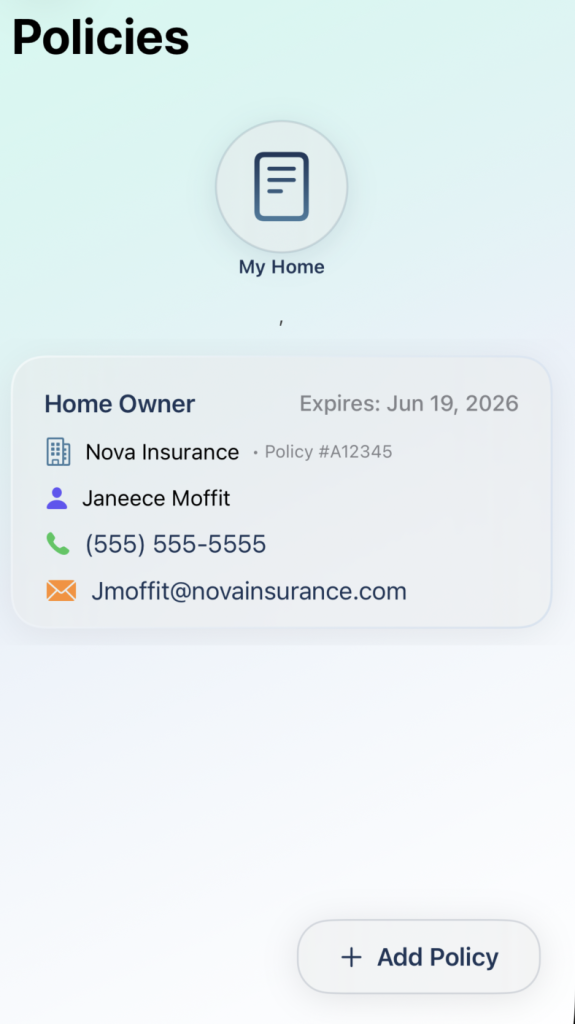
The Policies screen displays a card for each of the policies you’ve tracked for this home.
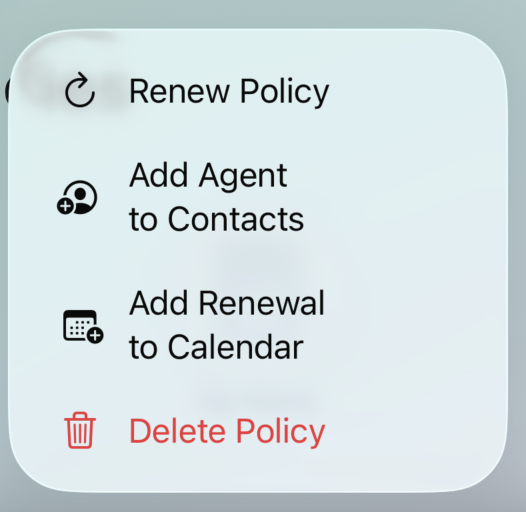
Long-press on a policy card to reveal a context menu with additional options.
Create a new Policy
Tap + Add Policy to track a new policy. Tracking more than one policy requires a subscription to ClaimGuard Premium Features.
Info
Tap the Info button on a Home card to reveal the information you’ve tracked about that home.
iCloud Sync
ClaimGuard stores your inventory data in Apple iCloud using CloudKit.
To ensure syncing works correctly:
- Make sure iCloud Drive is enabled
- Be signed into your Apple ID
- Enable iCloud for ClaimGuard in iOS Settings if prompted
If you install ClaimGuard on another device using the same Apple ID, your inventory will automatically sync.
Premium Features
ClaimGuard Premium unlocks additional features including:
- AI Object Detection
- AI Label Scanner
- Unlimited Tracking of Homes, Policies and Items
Troubleshooting
AI Identification Not Working
Try the following:
- Ensure you have an active internet connection
- Verify ClaimGuard Premium is active
- Use a clear photo with good lighting
If the AI cannot confidently identify an item, it may return “Unknown.”
Items Not Syncing Between Devices
- Verify both devices use the same Apple ID.
- Ensure iCloud Drive is enabled.
- Confirm ClaimGuard has permission to use iCloud.
You can check this in:
Settings → Apple ID → iCloud → ClaimGuard
App Performance Issues
If the app appears slow or unresponsive:
- Close and reopen the app
- Restart your device
- Ensure your device is running the latest version of iOS
Feature Requests
ClaimGuard is actively developed and improvements are ongoing.
If you have ideas for new features or improvements, feel free to send feedback.
Contact Support
If you need assistance, please contact support.
Email: info@merenda.one
When contacting support, please include:
- Your device model
- iOS version
- ClaimGuard version
- A description of the issue
This will help resolve your issue faster.
Privacy
ClaimGuard is designed with privacy in mind.
Your inventory data is stored in your personal iCloud account and is not accessible to the developer.
AI features process images only when you choose to use the identification feature.
For full details, please see the ClaimGuard Privacy Policy.