

DropCode+ Support
About DropCode+
DropCode+ is a simple, easy-to-use utility for capturing data from barcodes and QR codes. Designed to work with web forms, DropCode+ is perfect for tasks like inventory tracking and lookups.
How to Use DropCode+
Tap the address bar at the top of the page and enter the URL of the site you’ll be entering data into.
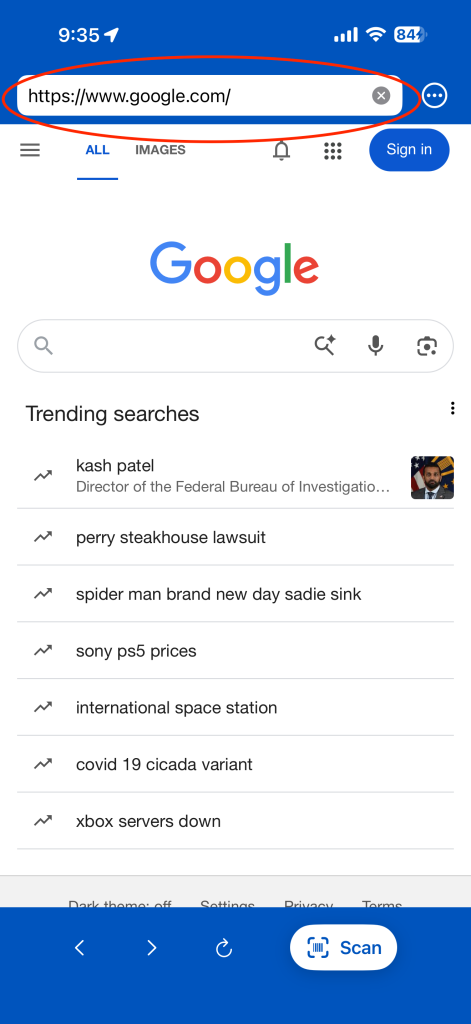
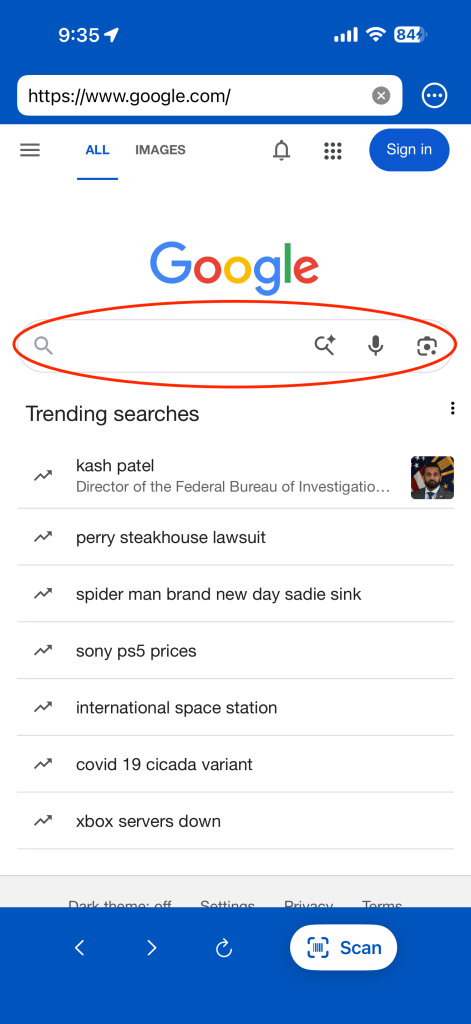
Once you’ve reached the page where you need to enter information, tap on a text box to select it. The text box you select is where DropCode+ will enter the data from barcode/QR code.
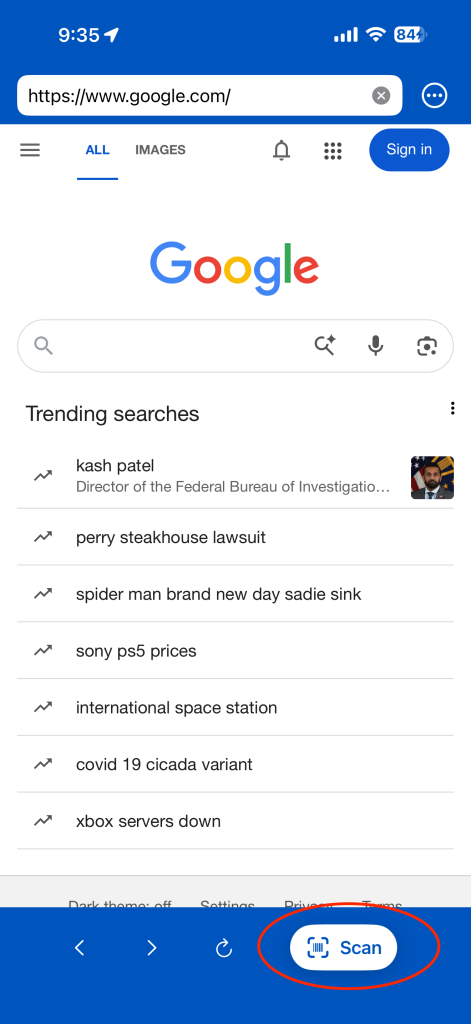
Once you have a text box selected, tap the Scan button at the bottom of the app, and grant the app permission to use your camera.
Simply point the camera at a barcode or QR code, and move your device until the code is in clear focus. You can tap the flashlight icon in the upper right corner to turn on your device’s flash, or tap the X in the upper left corner to close the scanner and return to the webpage.
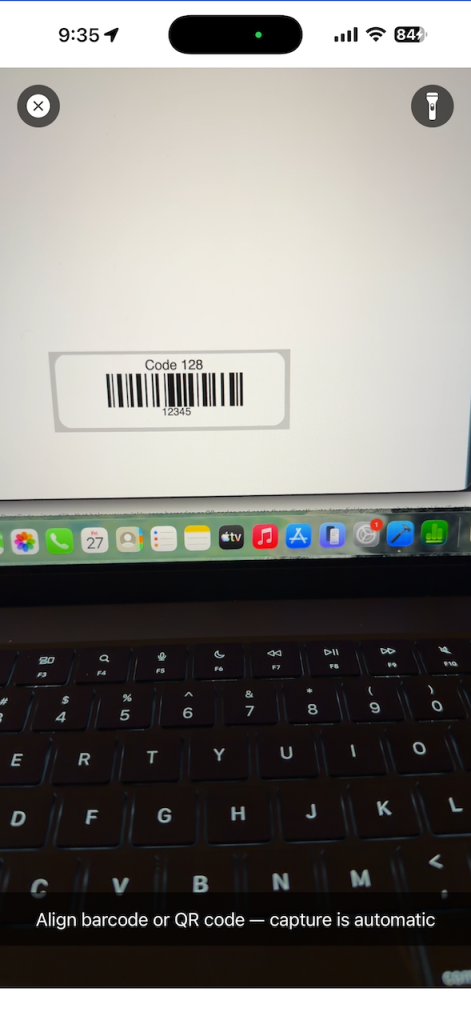
Once the DropCode+ sees a barcode or QR code, It will automatically read it, return to the webpage and enter the data from the code.
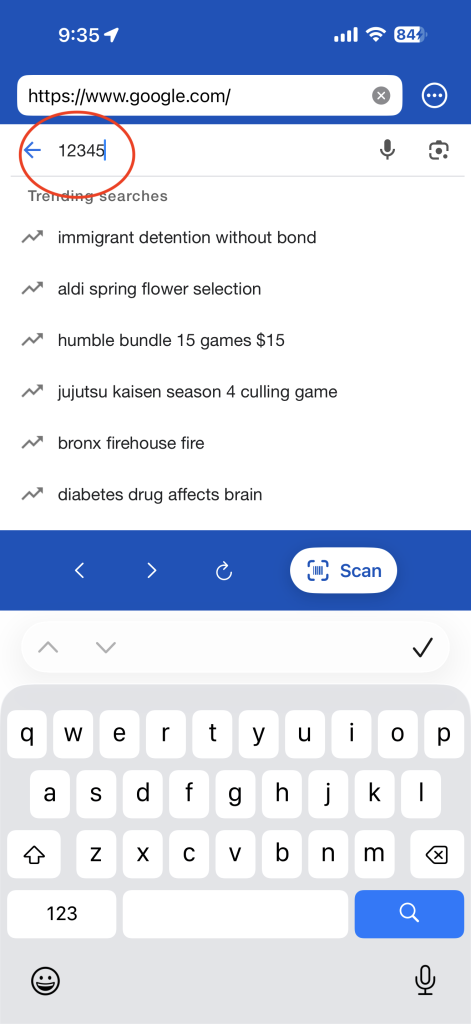
Navigation Controls
Use the buttons at the bottom of the app to navigate back and forth through pages you’ve visited, or reload the current page.

Home Page
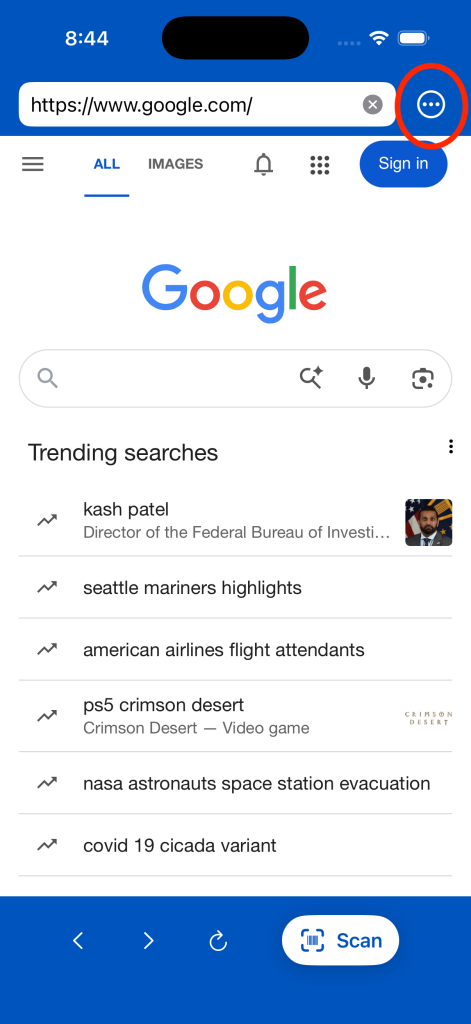
The Home Page is the page that loads when you launch the app. You can change the Home Page to be any website you’d like. Start by tapping the ellipsis button in the top toolbar.
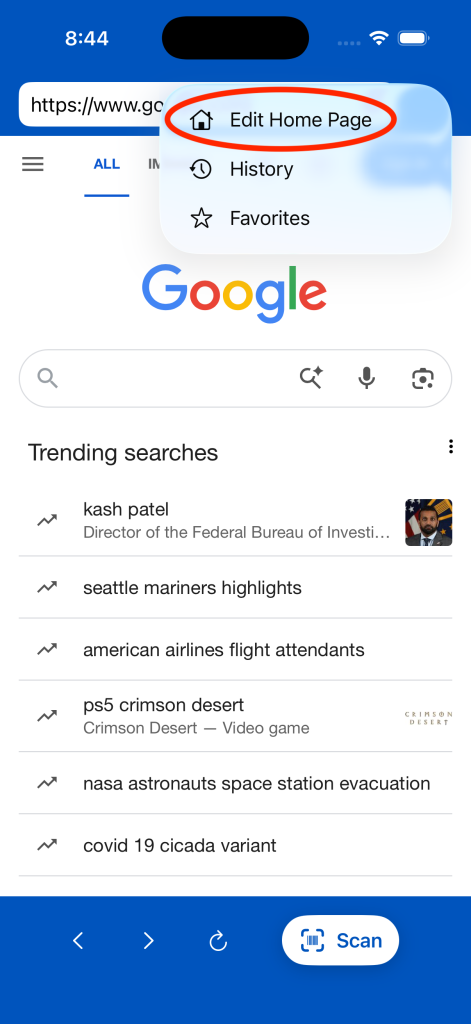
Next, tap Edit Home Page from the menu.
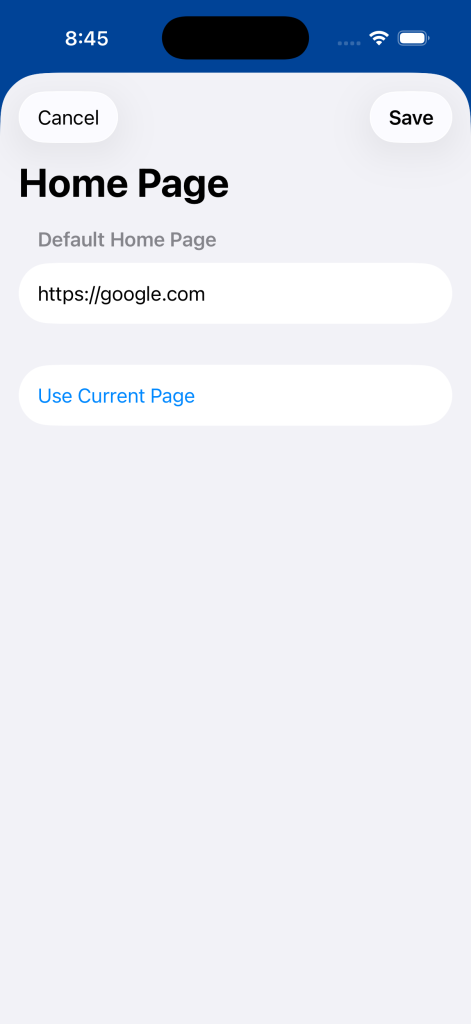
Enter the URL you’d like to use, or tap Use Current Page to set the currently loaded webpage as your Home Page. Tap the Save button once you’ve finished.
Webpage History
DropCode+ records the history of each webpage you’ve visited in the app. This information is stored on your device and is never shared with the developer. You can view, edit and clear your webpage history at any time.
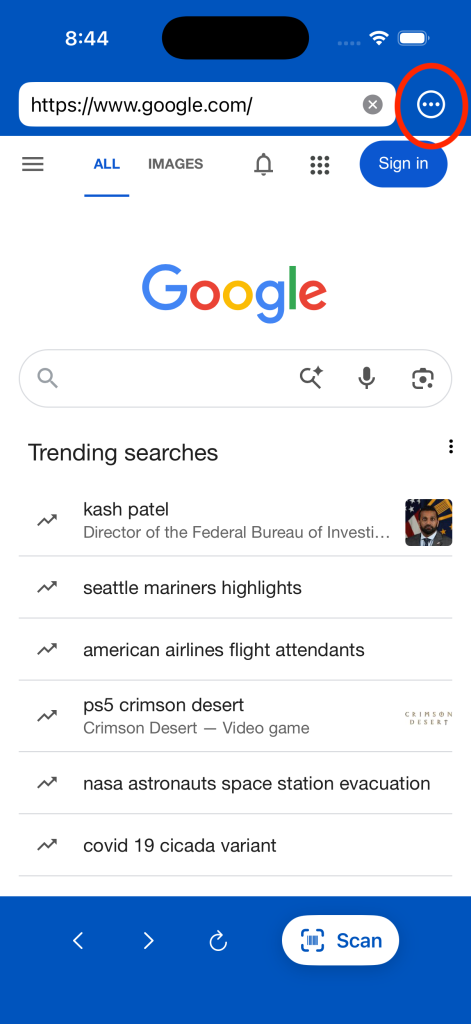
To view your history, start by tapping the ellipsis button in the top toolbar.
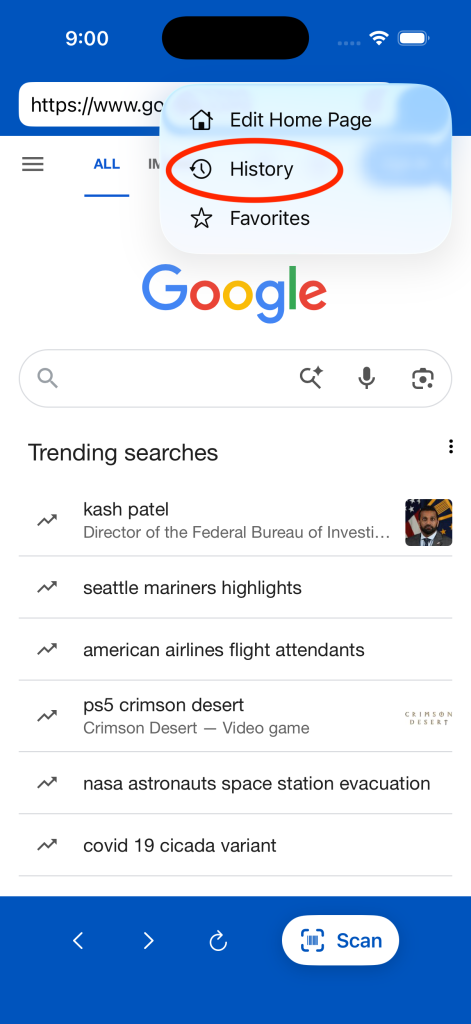
Next, tap History from the menu.
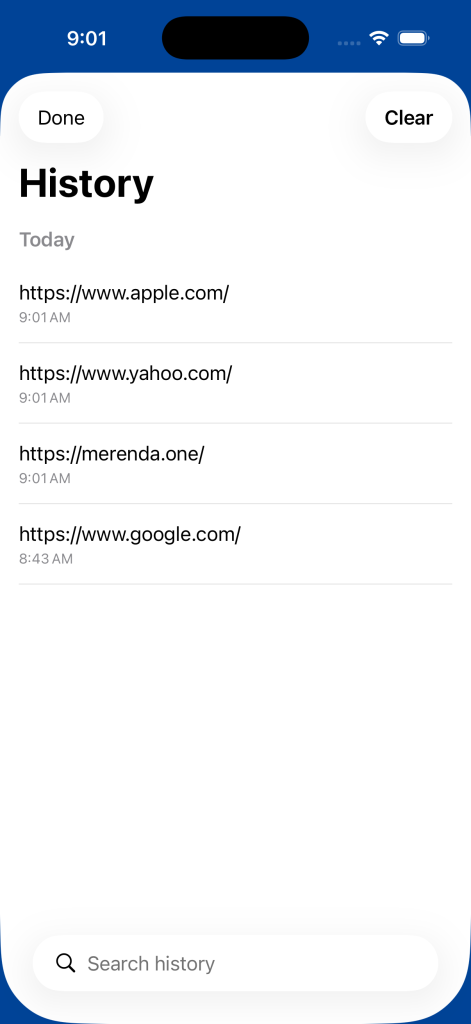
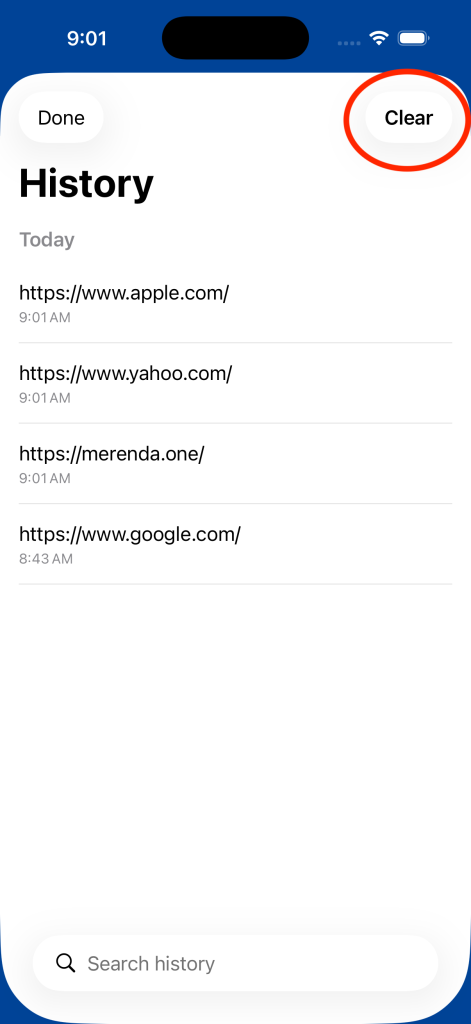
In the History view, webpages you’ve visited will appear in descending chronological order.
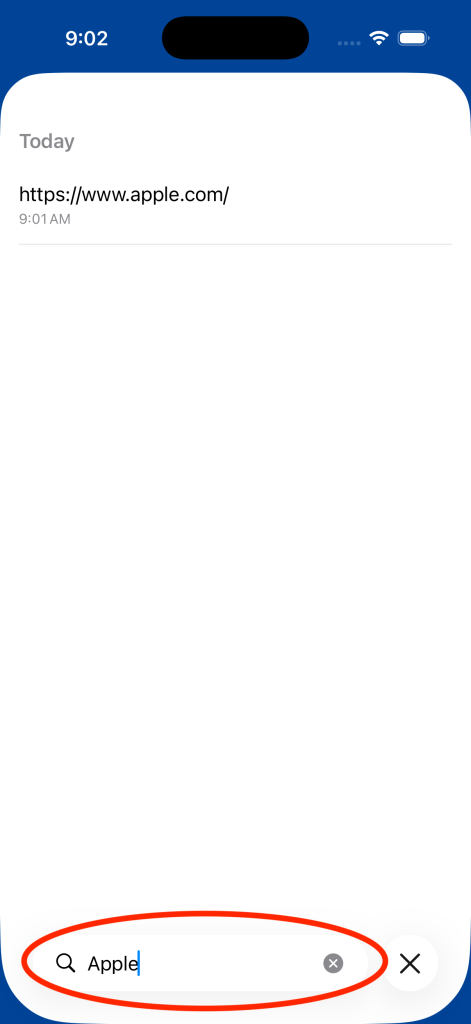
To search for your history, tap in the search box at the bottom of the screen and enter your search term. The search results will appear in real-time as you type.
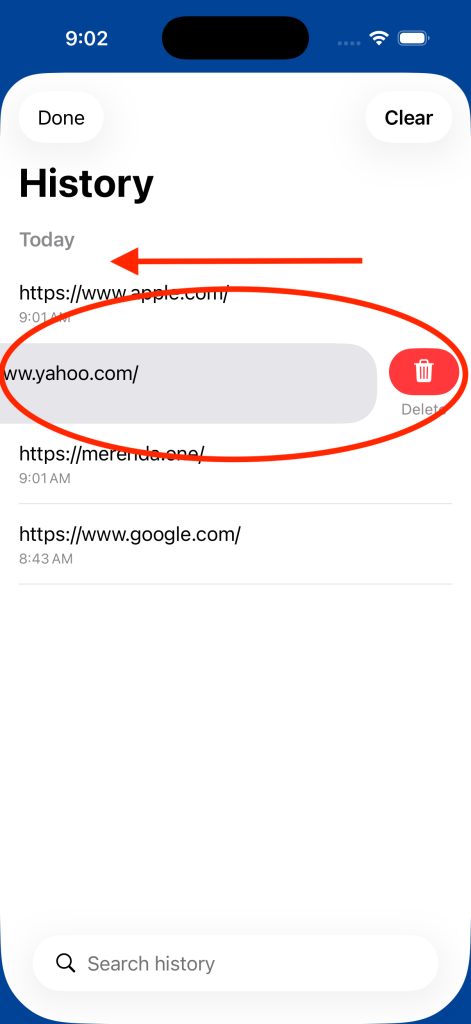
To remove an individual entry from the History, swipe right-to-left across the entry, then tap the Delete button.
To clear all of your webpage history, tap the Clear button at the top of the History screen.
Favorites
You can save webpages that you visit frequently as favorites, making them easy to remember and access.
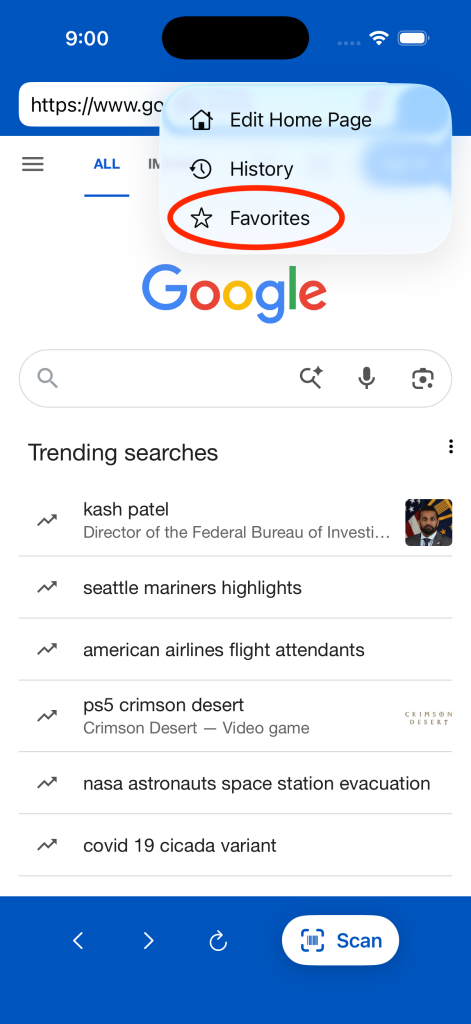
To create a new favorite or access existing favorites, start by tapping the ellipsis button in the top toolbar.
Next, tap Favorites from the menu.
Your favorites will appear, and you can tap any of them to quickly visit that site.
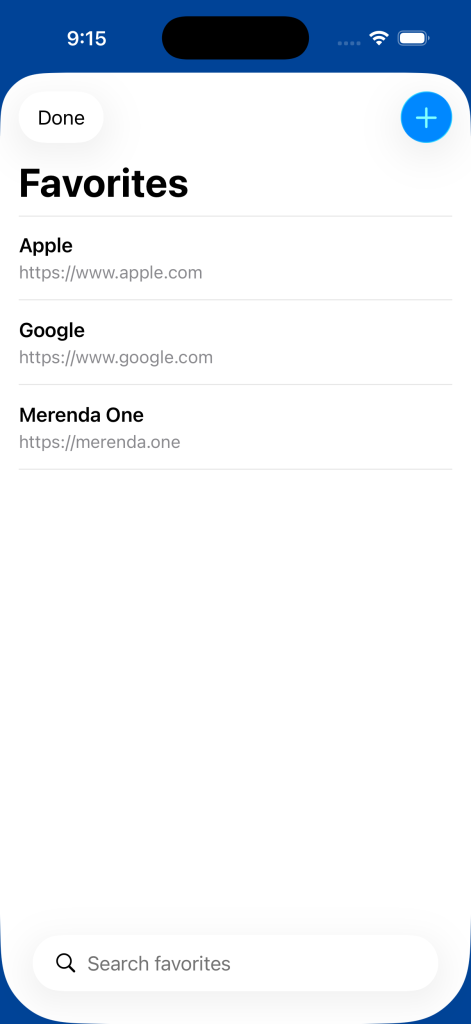
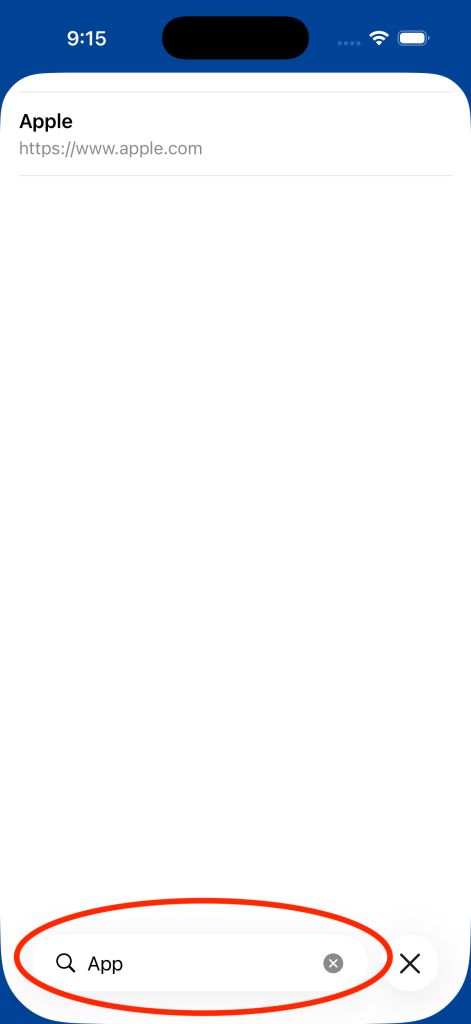
Use the search box at the bottom to quickly search for sites in your Favorites. The results will appear in real-time as you type.
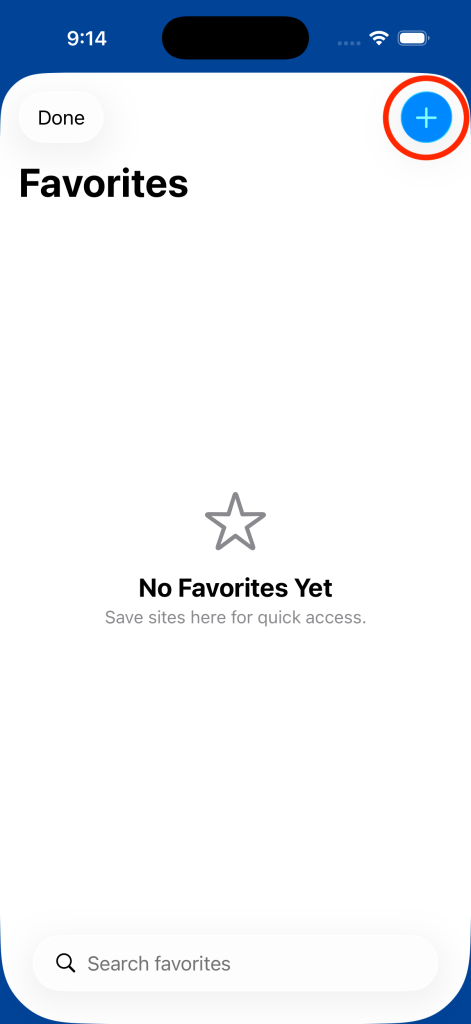
To create a new Favorite, tap the + button at the top of the sheet.
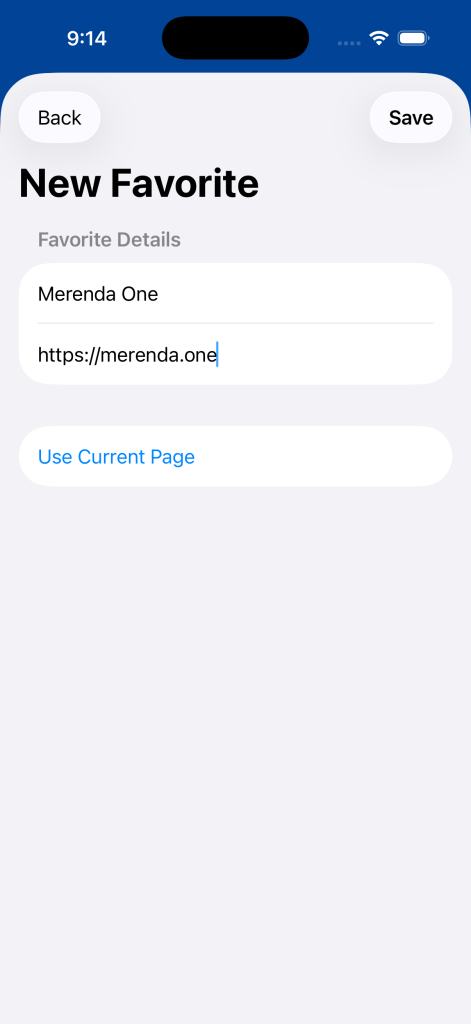
Enter the name and address of the site, then tap save. You can also tap Use Current Page to quickly create a favorite for the webpage that is currently loaded. Tap Save once you’ve finished creating the Favorite.
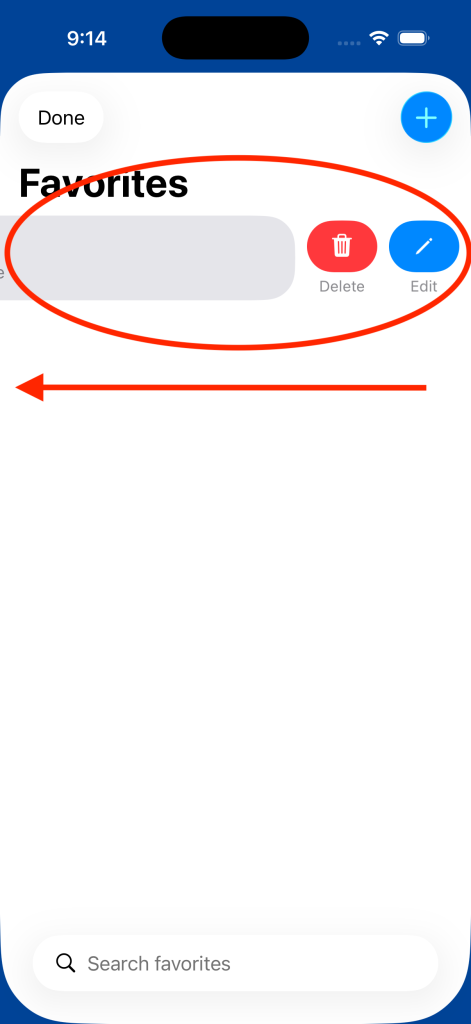
To edit or delete an existing Favorite, swipe right-to-left across it and tap the Edit or Delete button.
Troubleshooting
Issue: When I tap the Scan button, a message appears at the top of the app stating “Please Select a form field first.”
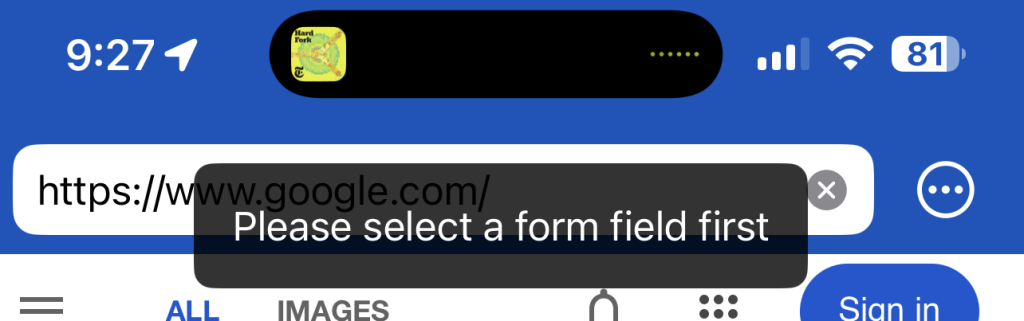
This occurs because you have not selected a text box on the webpage. DropCode+ needs to know where to put the data it scans, so you must select a text box on the webpage before you can use the scan button.
To resolve this message, select a field on the web page where you can enter text, then tap the Scan button again.
Issue: DropCode+ closes/crashes when I tap the Scan button.
This issue occurs if DropCode+ does not have permission to use the camera. DropCode+ uses the camera on your device to look barcodes and QR codes, so it must be granted access to the camera to use the Scan function.
To resolve this issue, open the Settings app on your device, then navigate to Privacy & Security > Camera. Look for DropCode+ in the list of apps, then turn on the toggle switch for DropCode+.
Privacy Information
View the DropCode+ privacy policy.
Help and Support
For any further support, email info@merenda.one